

Ecwid/Lightspeed documentation
Everything you need to connect your Ecwid or Lightspeed store with the Peppol network.
Install the SendPol app from the Ecwid App Market and connect your webshop to the Peppol network in just a few minutes. Below you will find the requirements, installation steps, and configuration.
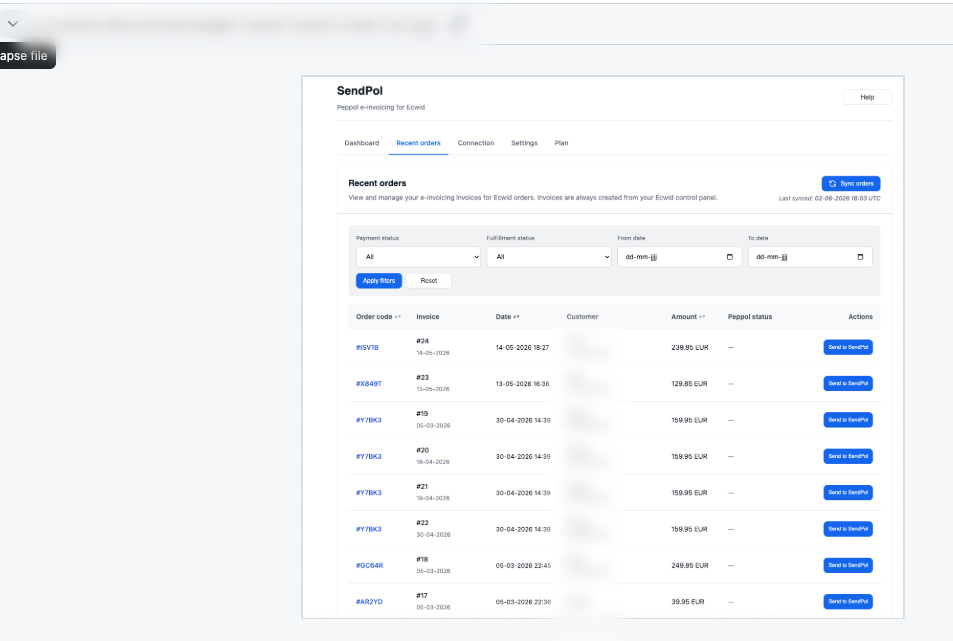
See SendPol in Action
See how easy the integration is
Requirements
- An active Ecwid or Lightspeed eCom (C-Series) store
- A valid VAT number
- A free SendPol account
- Administrator access to your Ecwid/Lightspeed control panel
Installation
- 1
Log in to your Ecwid/Lightspeed control panel and open the App Market.
- 2
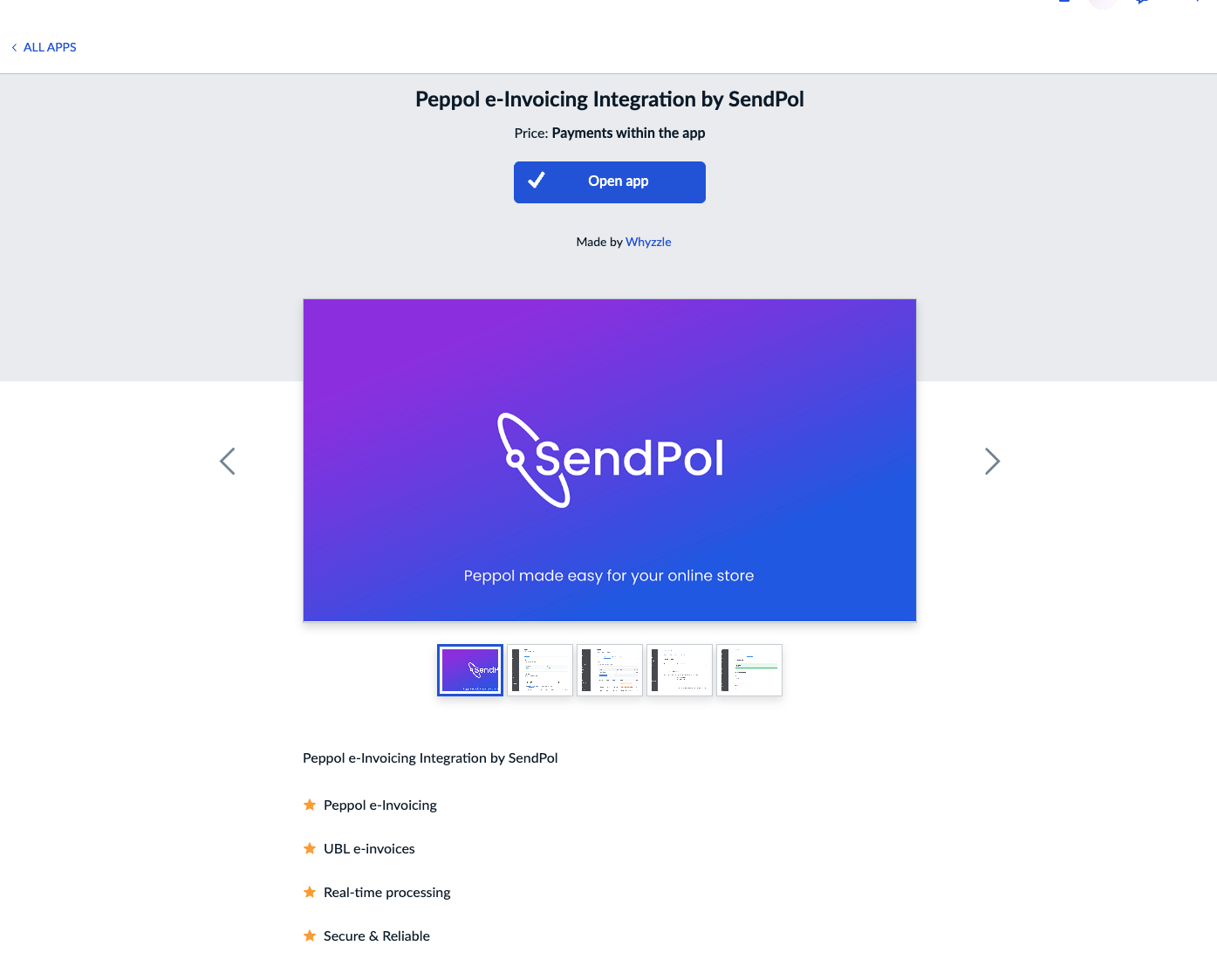
Search for "SendPol Peppol" and click "Install App".
- 3
Accept the required permissions (orders, customers, product info).
- 4
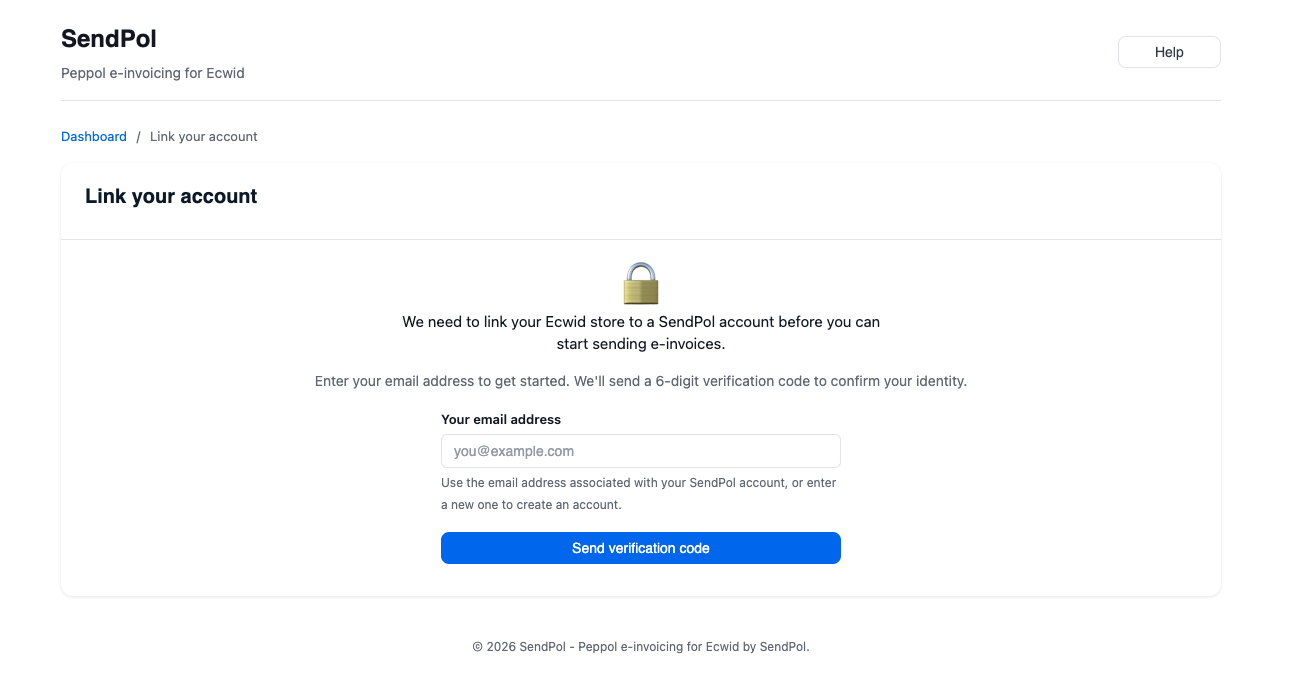
You will be redirected to SendPol to sign in or create an account.
- 5
Choose the webshop within SendPol where you want your Ecwid orders to land.
- 6
The app automatically registers the webhooks and is ready to use.
1. Install the app from the Ecwid App Market
2. Link your SendPol account
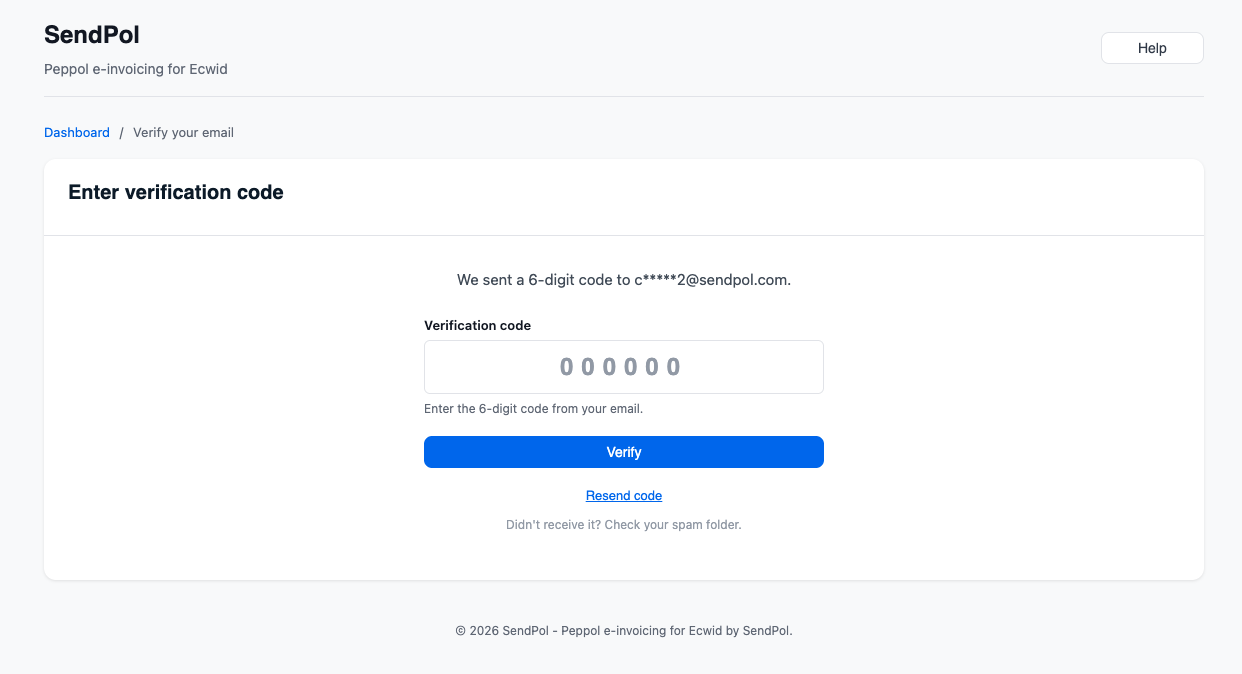
3. Verify your email address
Configuration
VAT settings
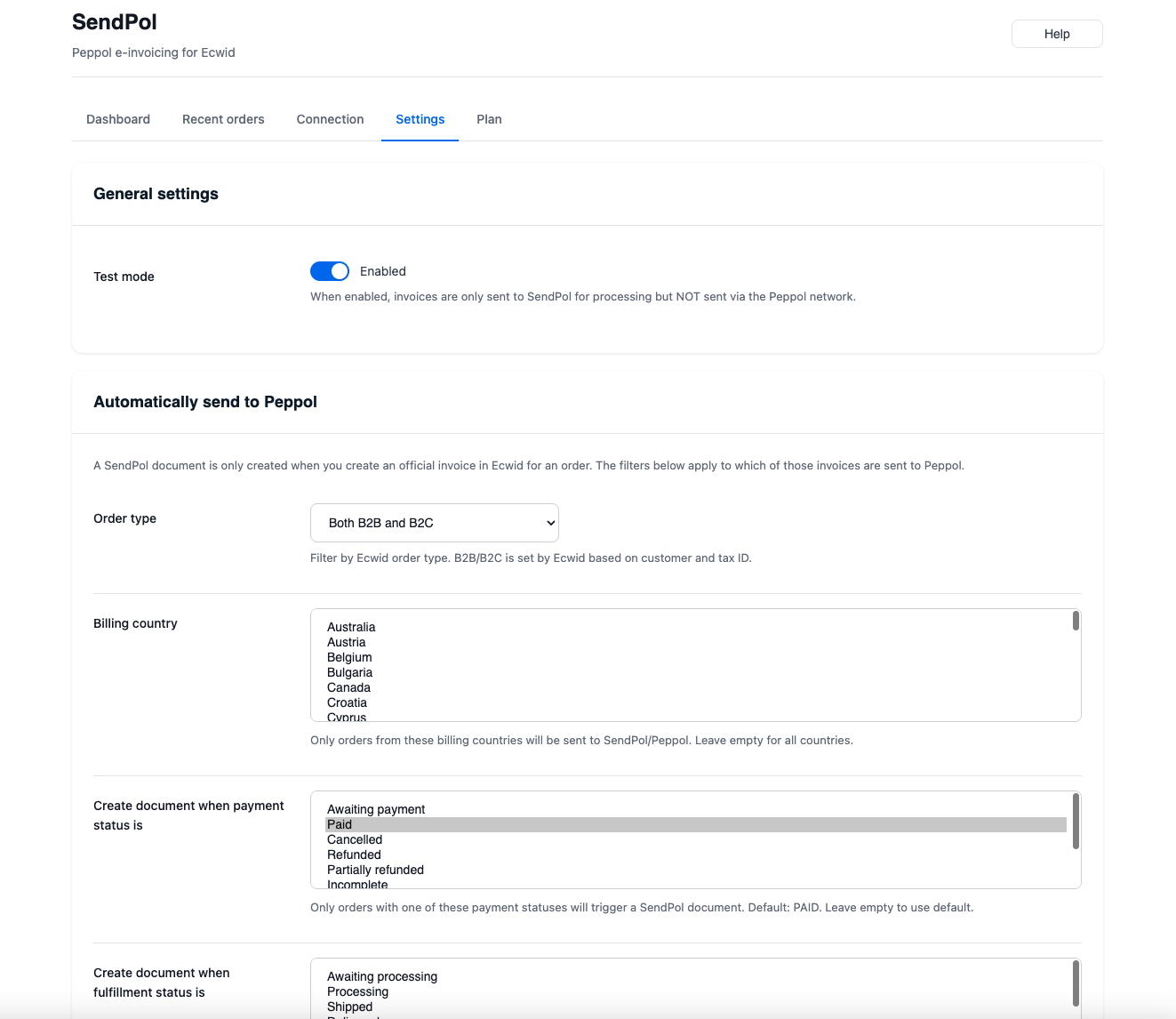
Set which VAT number is used as the sender and which default VAT rates apply to your products.
Invoice numbering
Choose between Ecwid order numbers or your own SendPol sequence for your Peppol invoices.
B2B detection
Enable automatic B2B detection to only invoice business customers via Peppol. Consumers receive a standard PDF invoice.
Language & template
Choose the default invoice language per customer country and link your branded PDF template.
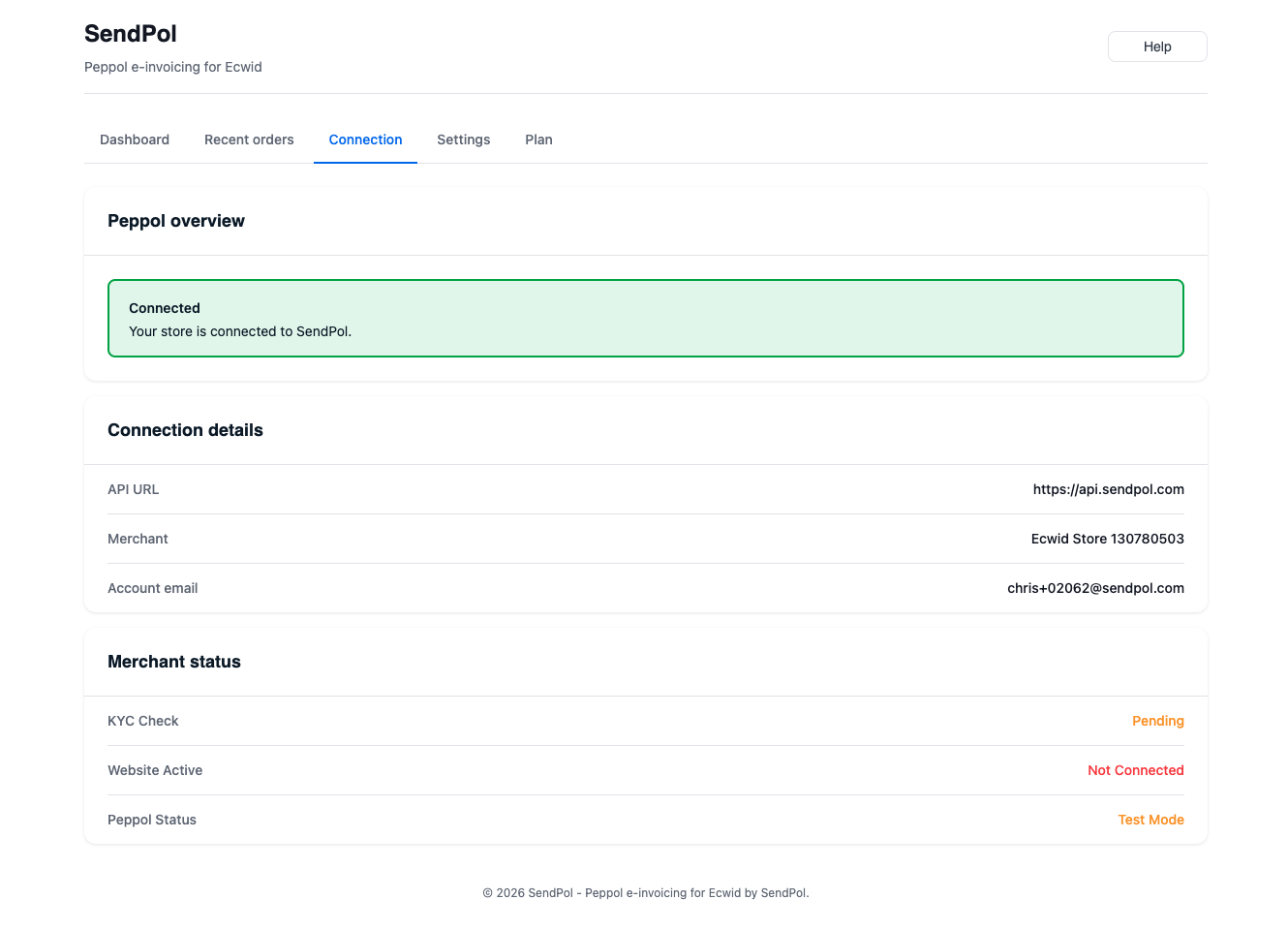
Dashboard & monitoring
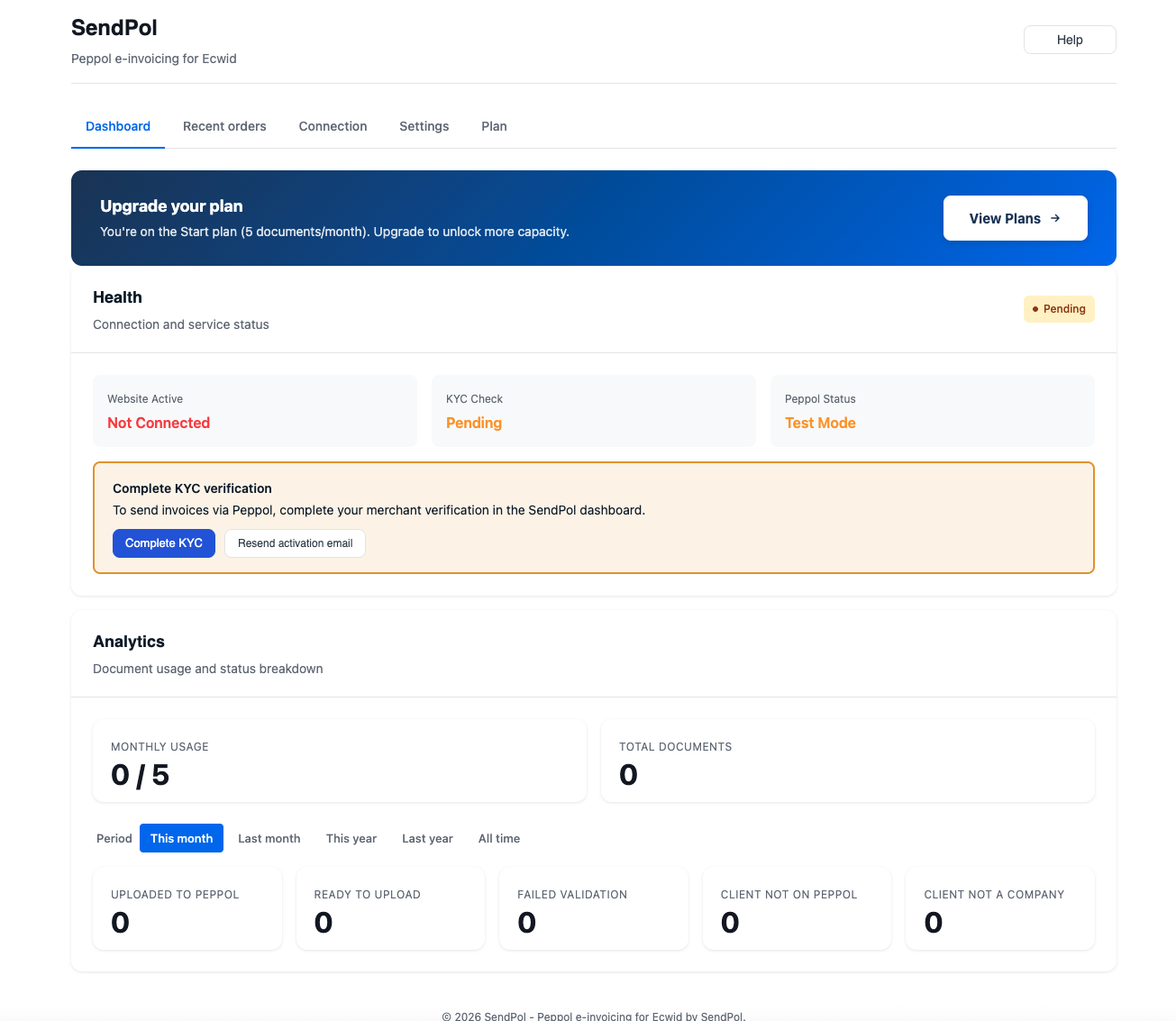
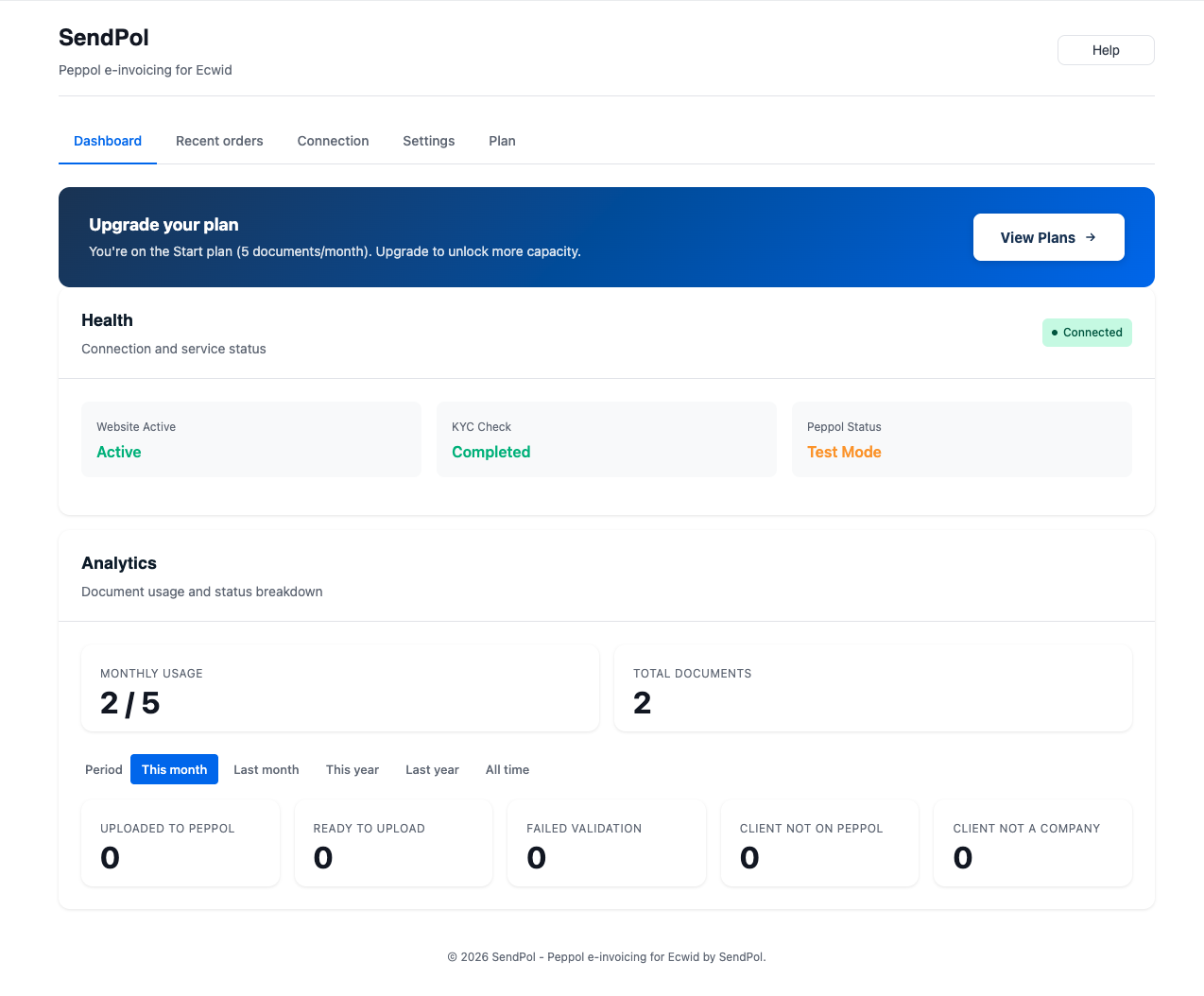
The dashboard shows the health of your connection, your monthly document usage and a status breakdown of your invoices. Complete KYC verification to send live via Peppol.
Need help?
Have questions or want to join the beta? Get in touch and we will be happy to help.